How do I set up Apsona in a sandbox?
When getting Apsona set up in a sandbox, there are a few things to consider and configure, depending on the features that you need in Apsona:
Setting Up Salesforce:
- Document your sandbox user name and password. Your username will always be your production user name with the name of the sandbox appended to the end. Your password will be the same as production. If you try to log into the sandbox with your production username, you will get an error.
- Visit your username in Setup and remove the '.invalid' that is appended to the end of your email address. This article describes how 'invalid' is added by Salesforce as a safety measure to avoid unintentional emails.
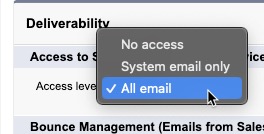
- Visit 'Deliverability' in Setup and decide which setting makes sense for you.
- "No access" will not send any emails, even if they are important system generated error emails.
- "System Only" will send Salesforce generated internal emails like error messages. This is helpful if you are an admin building automation and want to be notified if an error occurred.
- "All Email" will send any email that would be sent if you were in production. This includes any customer facing emails that go out via Salesforce automation. Sometimes this is necessary if you are setting up and testing an email operation. Apsona needs this setting to send any emails through Salesforce. If you are setting up merge actions, or scheduled reports/merge actions, then you need this setting. NOTE: if your sandbox is a "Partial" or "Full" sandbox then you may have contact records with actual email addresses. Be aware of the risk of sending emails to customers from the sandbox. An 'admin hack' is to take a one time effort and either delete contact emails from the system or append all of them with '.invalid' to ensure that emails don't unintentionally go out to these contacts.
- When sending emails from Salesforce, you may find that they initially end up in your "Spam" folder. This is due to how Salesforce appends the "From" email address when it is coming from Salesforce. It looks as if many characters are added to the address:
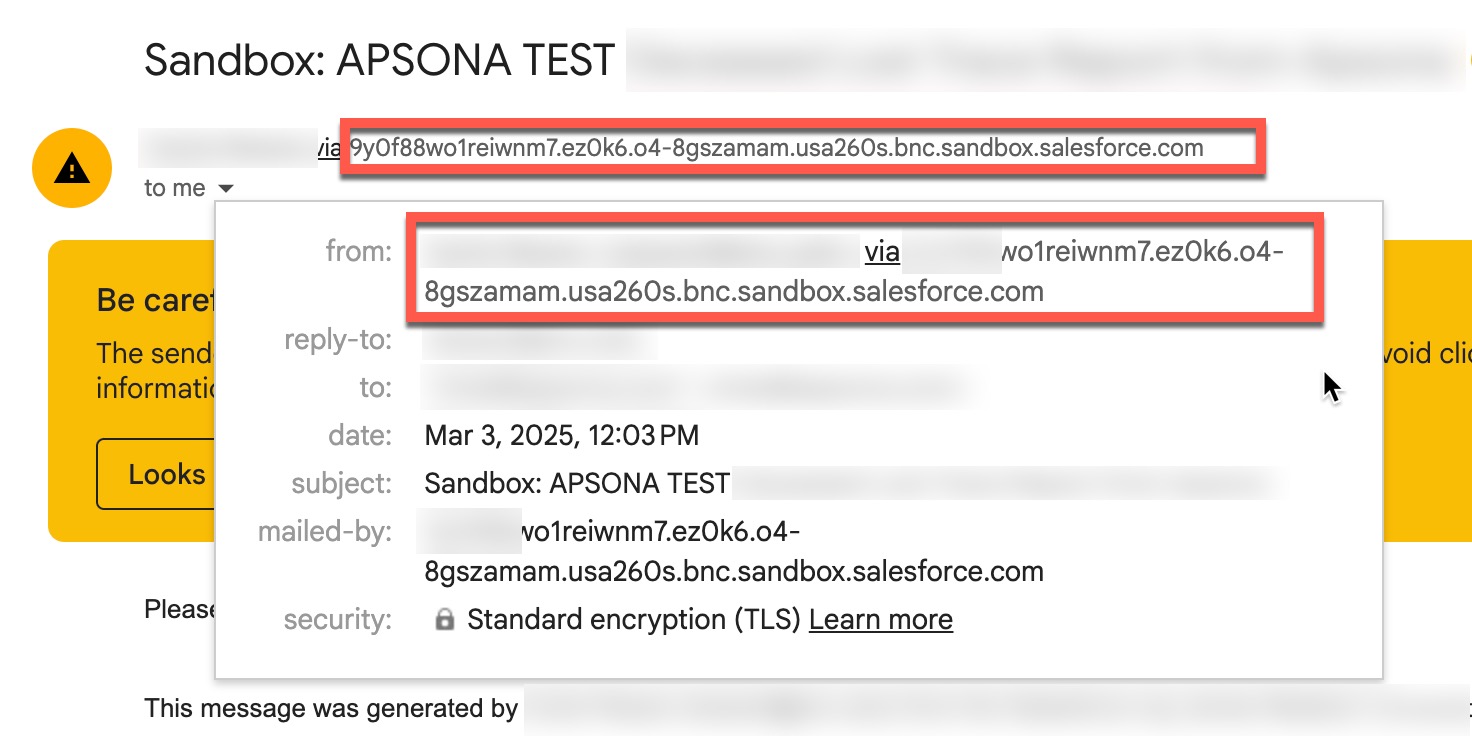
- Your webmaster can help make DNS updates to improve email deliverability. But if you are only testing, you may choose to simply look in the "Spam" folder rather than fix the deliverability issue. See this Salesforce article for more details.
Configuring Apsona:
If you are installing Apsona in a new sandbox, see this article and this document which has install links for the various tools.
If Apsona was installed and configured in Production:
- All Apsona packages will be carried over into the sandbox
- No 'Apsona Items' will carry over (unless it is a Full sandbox). This means that any reports, merge actions, filters, etc. will not carry over to your sandbox. This is because all of these items live as Salesforce records and records are not copied over. The solution is easy. This article and video explain how to bring over all of your Apsona Items with just a few clicks.
- All Apsona features can be used by any user in a Sandbox regardless of purchased license count. We want you to be able to easily test Apsona tools in sandboxes. Apsona will never expire in a sandbox.
- Users may not show up in Apsona->Settings->Manage Licenses. This is due to a Salesforce limitation regarding licensing in sandboxes. Users should still be able to use Apsona even if they do not show up in this list.
- If you will be using our Document and Email Merge tool they must have "DocGen" checked in Apsona->Settings->Manage Licenses. If the user is not in this list there are a couple options to give them access:
- You can check the "View Setup and Configuration" permission in their profile or a permission set. This will allow Apsona to 'check in setup' to make sure that the environment is a sandbox and give them access to the document merge tool. This only applies to sandboxes and this does not give edit access to Setup, just view access.
- You can contact support@apsona.com and ask us to check the "DocGen" box on your behalf. Even if you don't see the Apsona user in the "Manage License" screen, we will see the user in our internal system and can update them to give them access to the tool.
- Filters that reference lookup fields or record types may not work in the sandbox environment unless you are using a partial or full sandbox, in which case record IDs are copied over from the production environment. Be sure to update any reference to lookup fields or record types to the new version of them in the sandbox. This video provides more details.
- Any permission/setting that is required in Production for users to use Apsona tools, will also be necessary in sandboxes. If the users had access in Production, they should automatically have access in the sandbox.
- If you plan to use the sandbox for long term projects and you need the Document and Email Merge tool or the Charts and Dashboard tool, contact sales@apsona.com and provide the Org ID (which can be found in Apsona->Settings->Manage Licenses) and ask them to extend or remove the expiration dates for those two tools. Due to technical reasons these two tools inherit an expiration date and will eventually expire even though Apsona policy allows indefinite use of the tools in a sandbox. Other licenses should remain active indefinitely.
- If you are using the Batch Gift Entry tool, the Scheduler tool, view-only licenses, or button-only licenses, contact sales@apsona.com and provide the sandbox Org ID (which can be found in Apsona->Settings->Manage Licenses). Staff needs to create internal records for those tools and licenses to work in a new instance.
- For more information on setting up Scheduler see this Knowledge Article
- You must re-enable Scheduler in the sandbox. You must use your sandbox username and password during this enablement process.
For information about deploying Apsona from a Sandbox to Production, see this article.