How do I log in and upgrade the Apsona app?
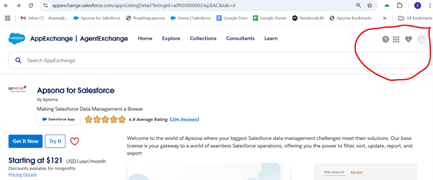
Step 1: Go to the Salesforce AppExchange and search for "Apsona", or simply click here to access it directly.
Step 2: Ensure you're logged in with the correct Salesforce account associated with your org.
 <!--DIMENSION:|350x350-->
Step 3: Click on “Get It Now” to start the installation process.
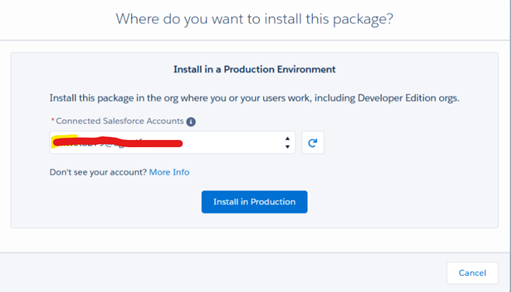
Step 4: Verify that you’re logged in with the correct account you wish to upgrade, then click Install (Production or Sandbox) to begin the installation process.
 <!--DIMENSION:|350x350-->
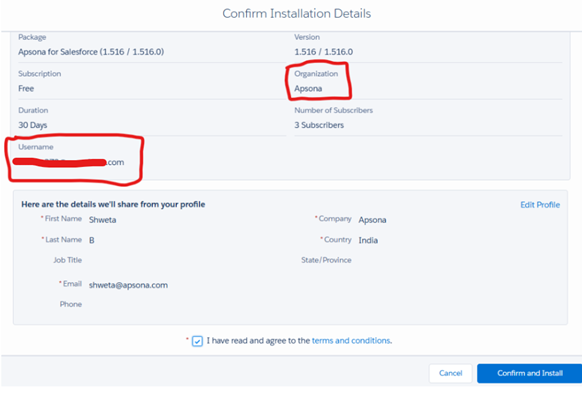
Step 5: Verify that the Organization Name and User Name are correct, then click Confirm Installation to proceed.
 <!--DIMENSION:|350x350-->
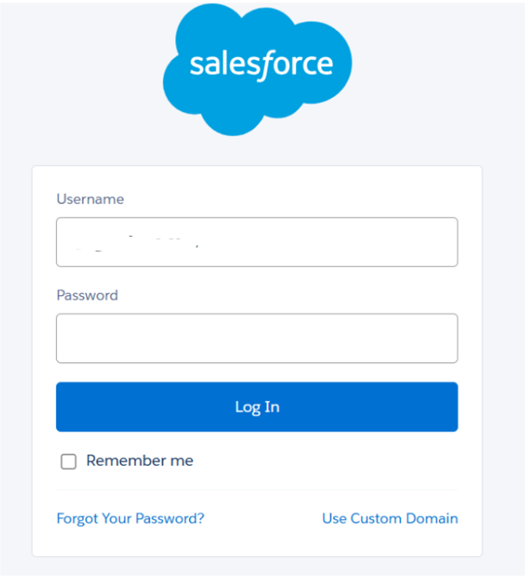
Step 6: Salesforce will prompt you to log in again to confirm your identity before proceeding.
 <!--DIMENSION:|350x350-->
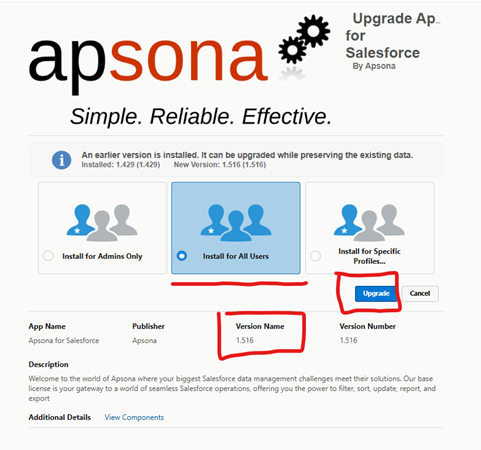
Step 7: Once you’re logged in, you’ll be automatically redirected to the Apsona Upgrade Page.
Select “Install for All Users” to proceed.
You’ll see the current app version mentioned on the page, confirm it, and then click Upgrade to complete the process.
 <!--DIMENSION:|350x350-->
Step 8:Once the upgrade is complete, please clear the cache for all users in Apsona to ensure the changes take effect properly.
Navigate to Apsona > Settings > Clear Cache for All Users, then click Proceed to complete the action.