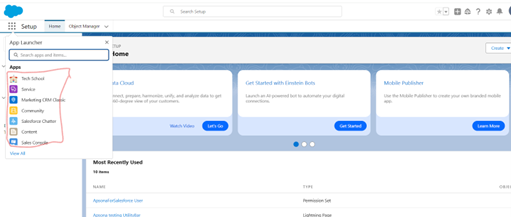
How can we add the Apsona app icon to the App Launcher grid view in Salesforce?
 <!--DIMENSION:|450x450-->
If the Apsona app is only visible under “All Items” and not in the App Launcher grid, it’s likely because it was installed as a Classic app. To make it appear in the App Launcher (under “All Apps”), you can create a custom Lightning App for Apsona.
Follow these steps to create a Lightning App:
-
Go to Setup → App Manager → Click “New Lightning App”
-
Define the App:
-
App Name: Apsona for Salesforce
-
(Optional) Upload a logo
-
Click Next
- Set Navigation Options:
-
Select Standard Navigation
-
Click Next
- Add Tabs:
-
Search for and add the Apsona tab (e.g., Apsona Items)
-
Add any other relevant tabs
-
Click Next
- Assign to User Profiles:
-
Select appropriate profiles (e.g., System Administrator)
-
Click Save & Finish
- Final Step:
-
Refresh your Salesforce
-
Go to the App Launcher → You should now see Apsona for Salesforce listed under “All Apps”
-
Optionally, pin or drag the app to the top for easy access